
If you have participated in Zoom sessions before with your device, check to see your app is up to date.
1. Set up your device for Zoom
- Download and install a Zoom app for your device
- After installing, visit http://zoom.us/test to join a test meeting. Here you can familiarize yourself with Zoom, in addition to testing your microphone/speakers before joining a Zoom meeting.
2. Setting up your Zoom environment
- Lighting should come from in front of you or from the side, in order to best light your face. Eliminate any direct backlighting (like a window behind you). Get plenty of light overall — be aware of glare on any eyeglasses.
- Keep your background clear of distractions
- Have the camera of your device/laptop at eye level. Put the device/laptop on a box or some other sturdy support such as stack of large books to adjust the camera to eye level
- Smartphones or pads with cameras can be used but must be used in a horizontal or landscape position ▄ not portrait ▌and should be used with a stand or not hand held.
- Avoid noise and other sounds at your space.
- Choose solid-colored clothing rather than clothing with tight patterns or logos.
3. Settings to reduce additional faces/images during the Zoom meeting
On a computer/laptop
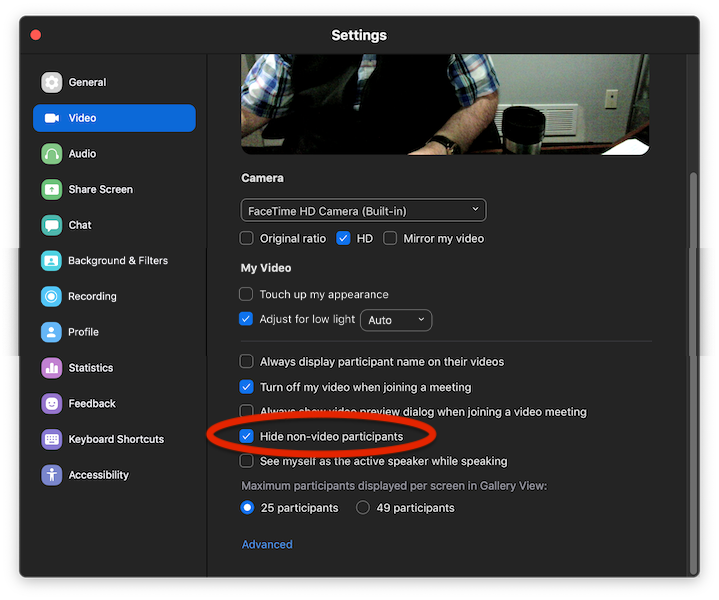
- Go to menu zoom.us > Preferences… > Settings > Video. Then make sure “Hide non-video participants” is enabled
On a phone
- Start the Zoom app
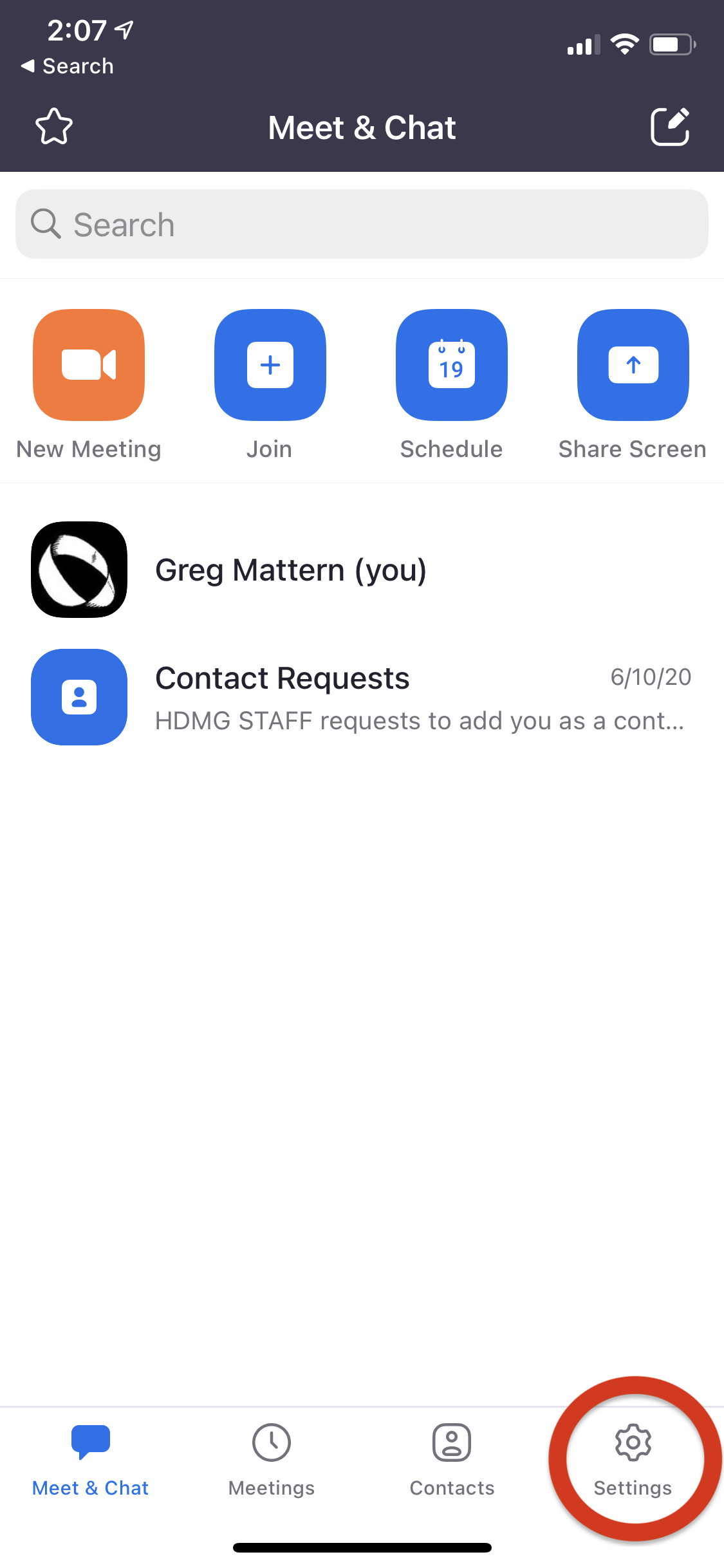
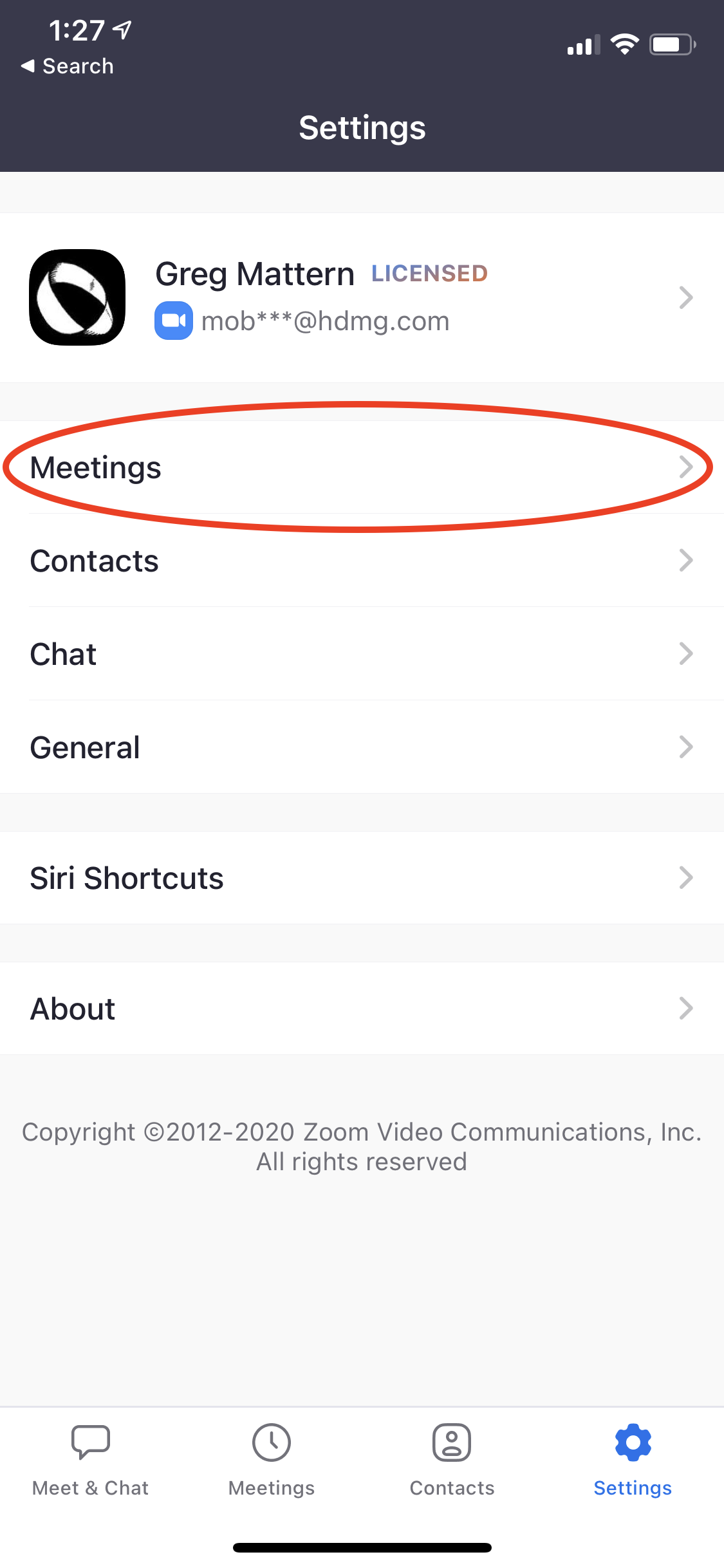
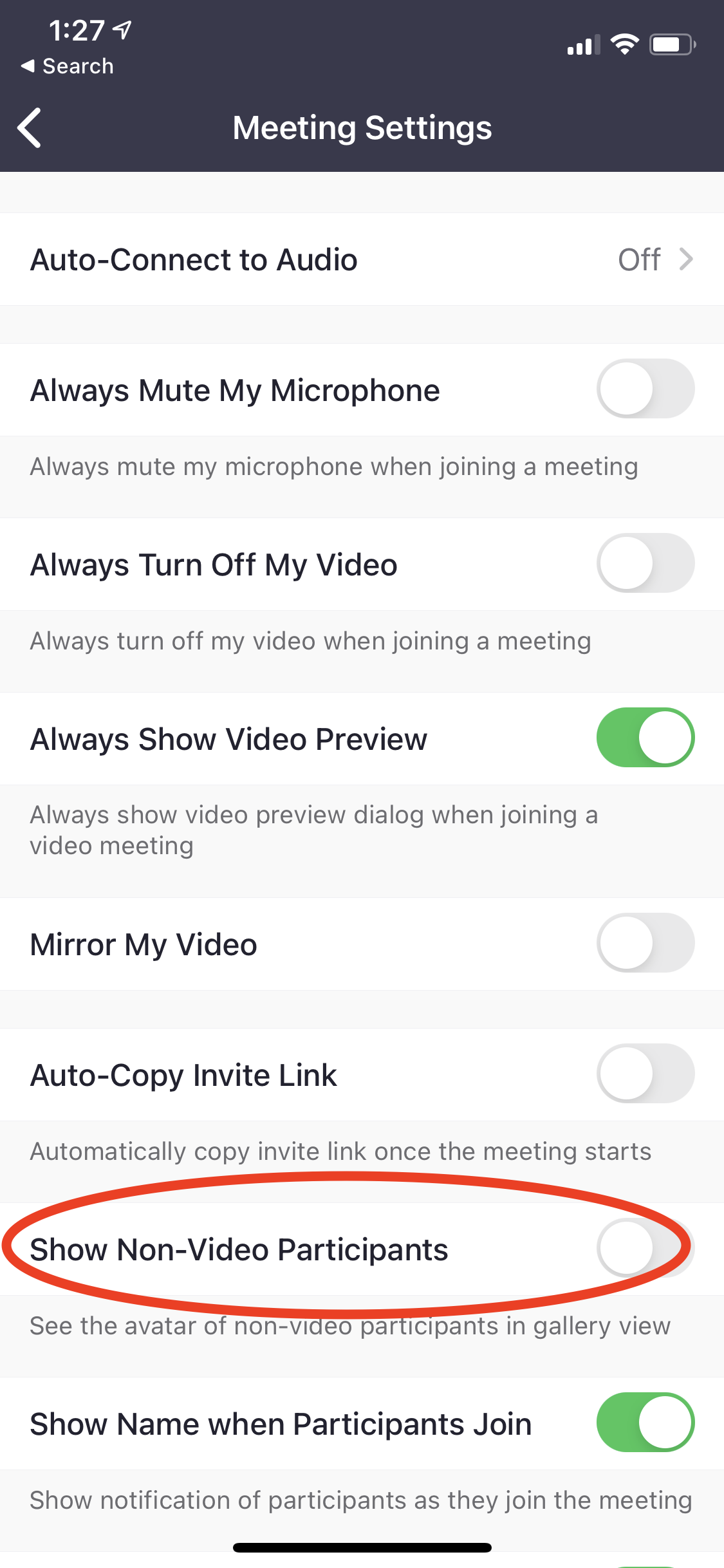
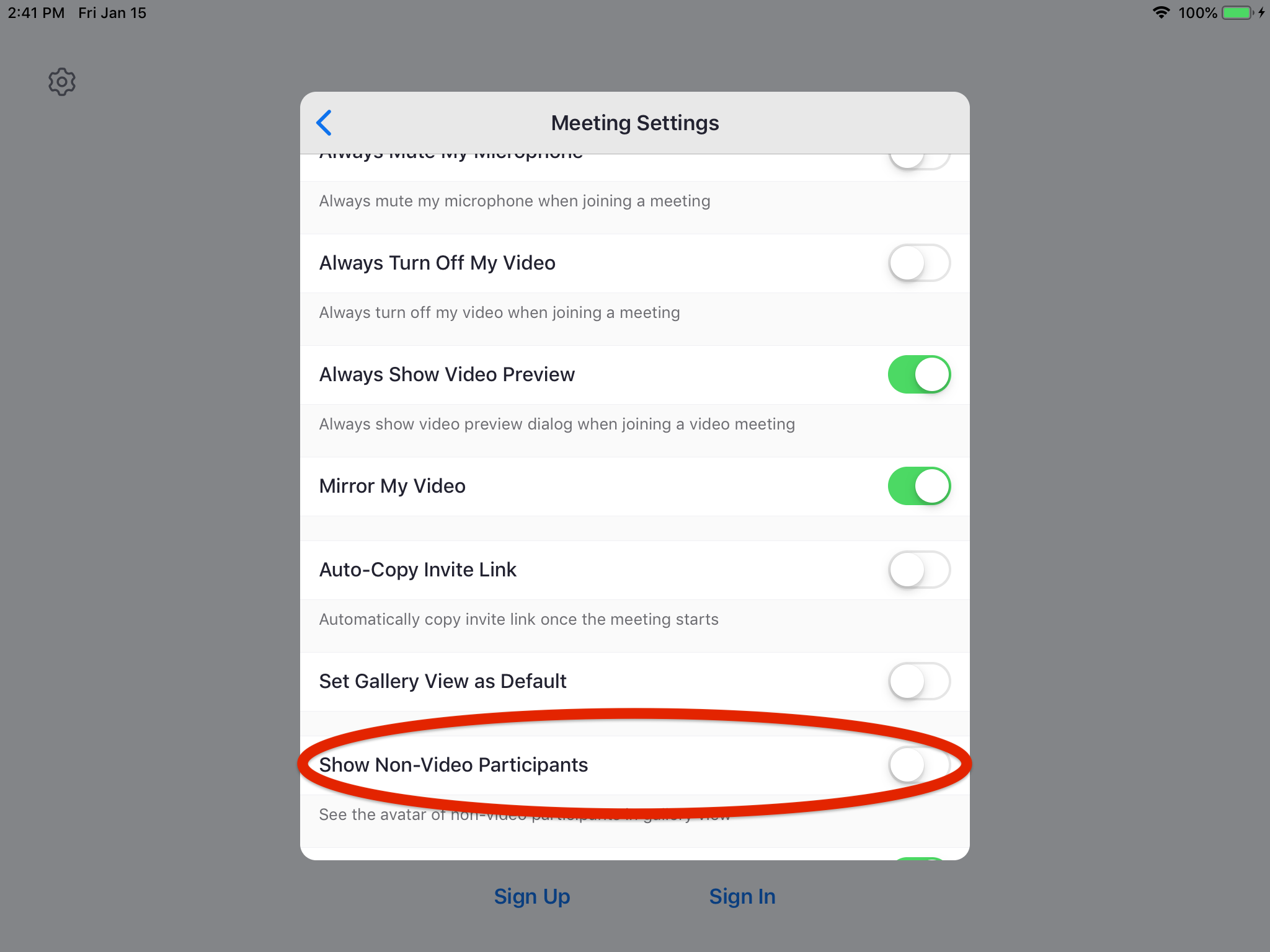
- Settings in the lower right Settings > Meetings > Then make sure “Show Non-Video Participants” is disabled/off
On a pad
- Start the Zoom app
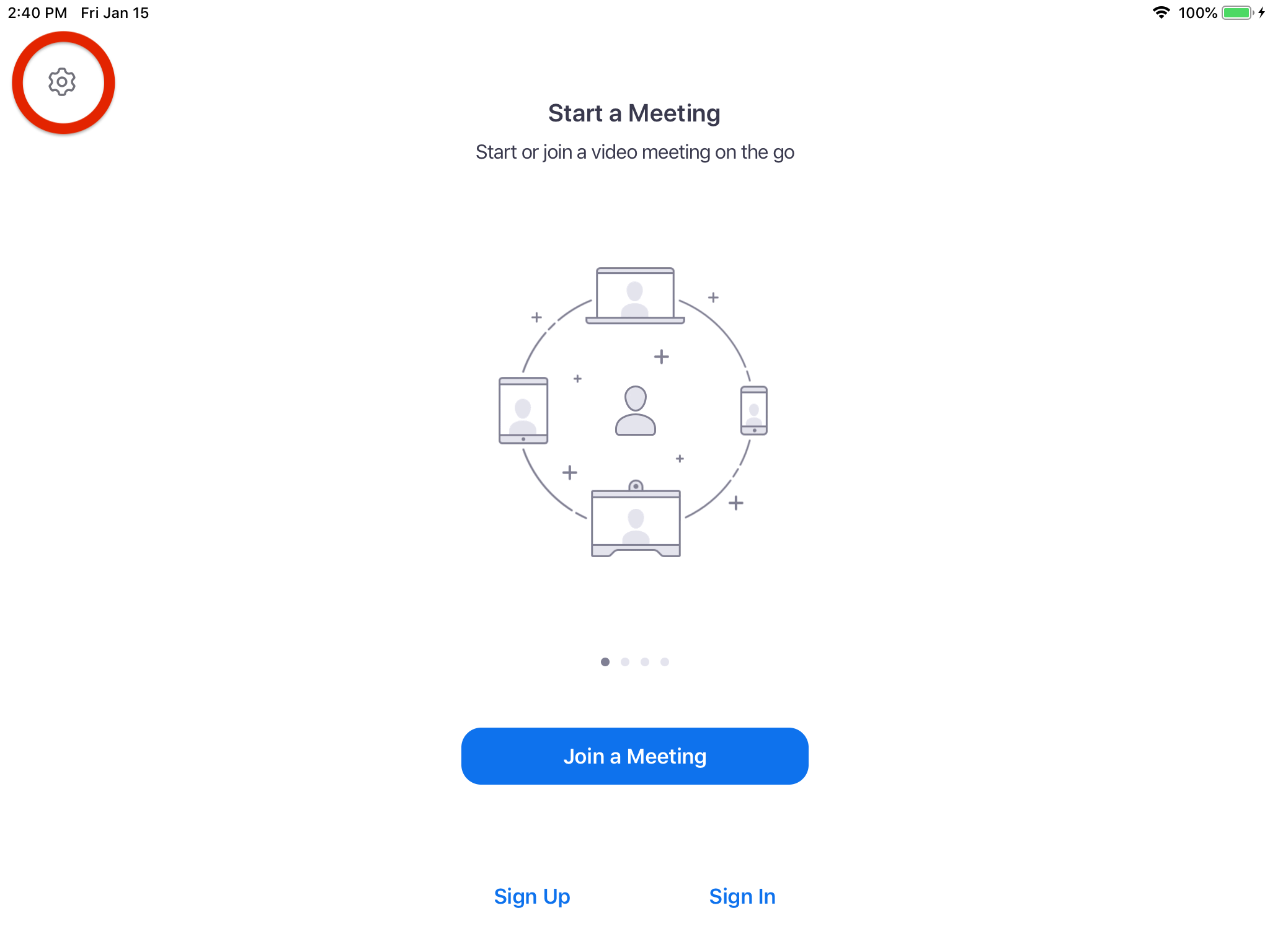
- Settings in the upper left Settings > Meetings > Then make sure “Show Non-Video Participants” is disabled/off

4. Possible Audio Settings
On a computer/laptop
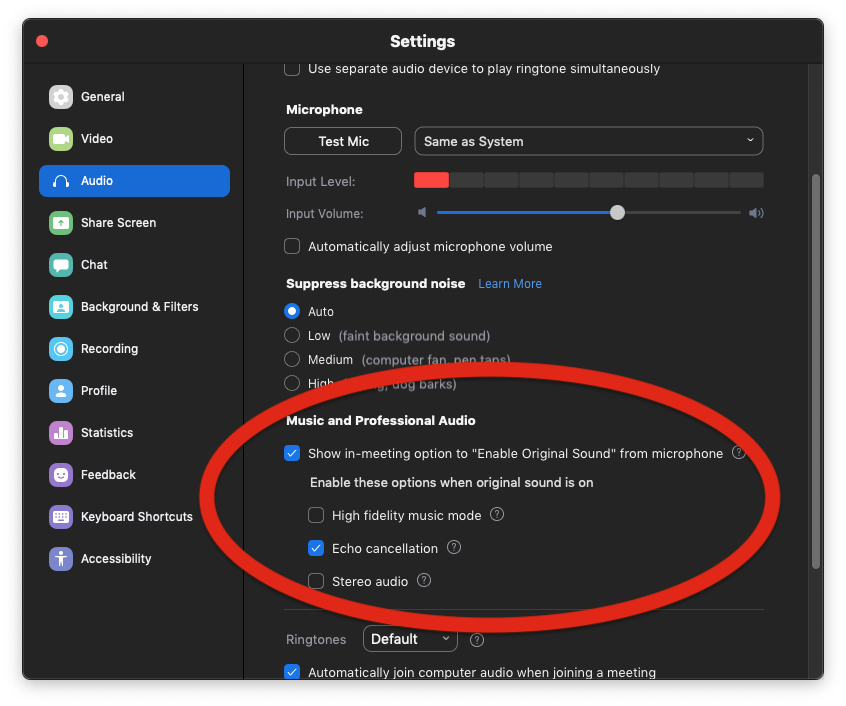
- Go to menu zoom.us > Preferences… > Settings > Audio. Enable “Show in-meeting option to “Enable Original Sound” from microphone“
- Enable “Echo cancellation“

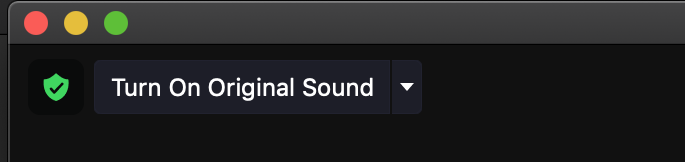
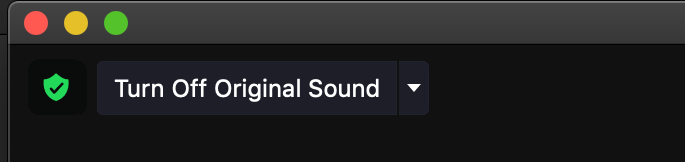
- Now in the main Zoom screen in the upper left of the window you will see the status of your microphone. Toggle/click the words in the upper left so that they show “Turn Off Original Sound“
5. Additional information and support
- For additional technical assistance or questions email zoom@hdmg.com
- For additional more detailed information visit Zoom’s online Help Center